
A slow network is not just annoying; it breaks your flow—video calls start cutting out, pages take too long to load, file uploads hang at the worst time, and the whole thing often feels random, which makes it even harder to fix.
Here’s the reality. In many cases, your internet plan is not the main problem. The slowdown usually stems from a single weak point in your setup. That weak point limits how fast data can move. Once that happens, everything on the network feels slower.
That weak point is called a network bottleneck. This blog will help you find it clearly. With the help of practical checks and basic network monitoring, you will learn what to look for, how to test properly, and how to narrow down the cause without guessing.
What Is A Bottleneck in Networking?
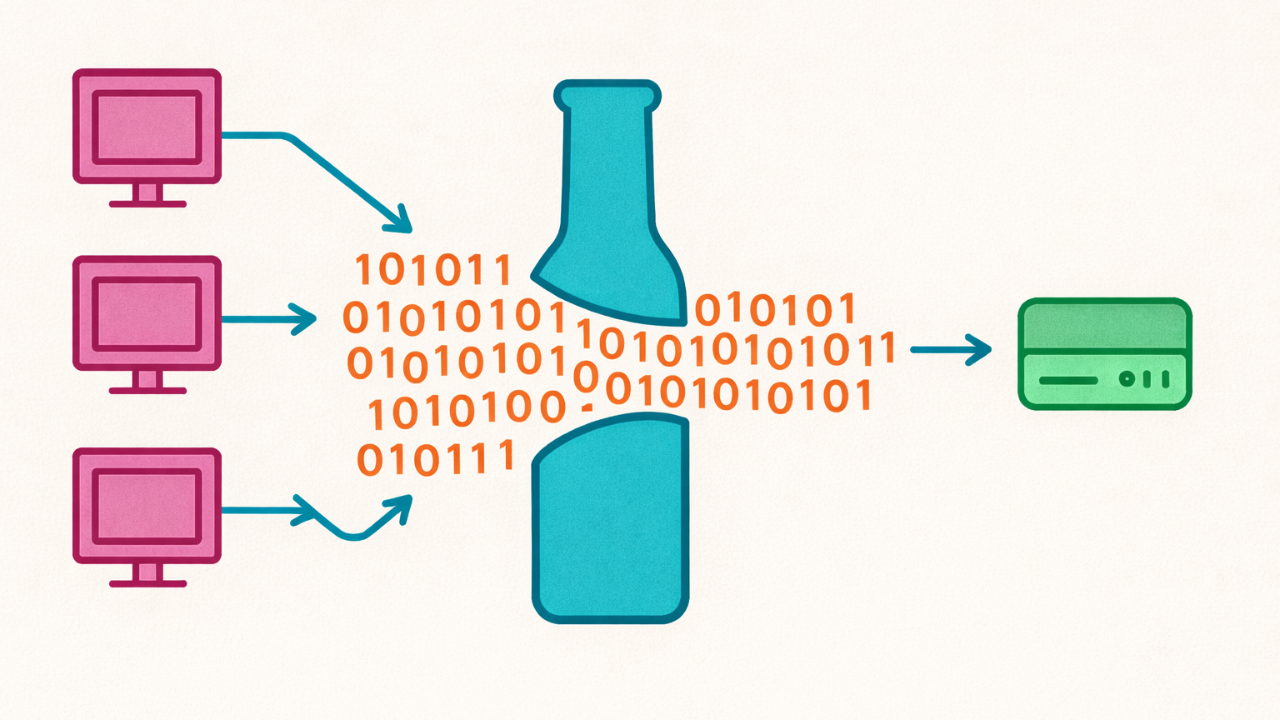
A network bottleneck is the part of a network that cannot handle the amount of traffic passing through it. It becomes the slowest point. When data reaches that point, it starts to “queue up,” slowing everything behind it.
Think of it like a busy road. A highway can have ten lanes, but if a bridge reduces it to one, the entire flow is capped by that single point. Even if the rest of the road is okay, that one narrow spot controls the speed. Networks behave the same way.
Many people type searches like ‘network bottleneck’: what does ‘bottleneck’ mean in networking, and how do you find a network bottleneck? because the problem feels vague. The fix becomes simple once you see where the slowdown actually starts.
Why You Need to Identify the Bottleneck Before Upgrading Your Plan
Network problems are confusing because “slow” can mean different things. Sometimes your bandwidth is insufficient, causing network issues, other times bandwidth is sufficient but you have latency/packet loss/jitter to critical applications.
That is why a single speed test is not enough. You need a small set of checks that show where the weak point is.
Common Signs Of A Network Bottleneck
You do not need tools to notice the early signs. Patterns give you clues.
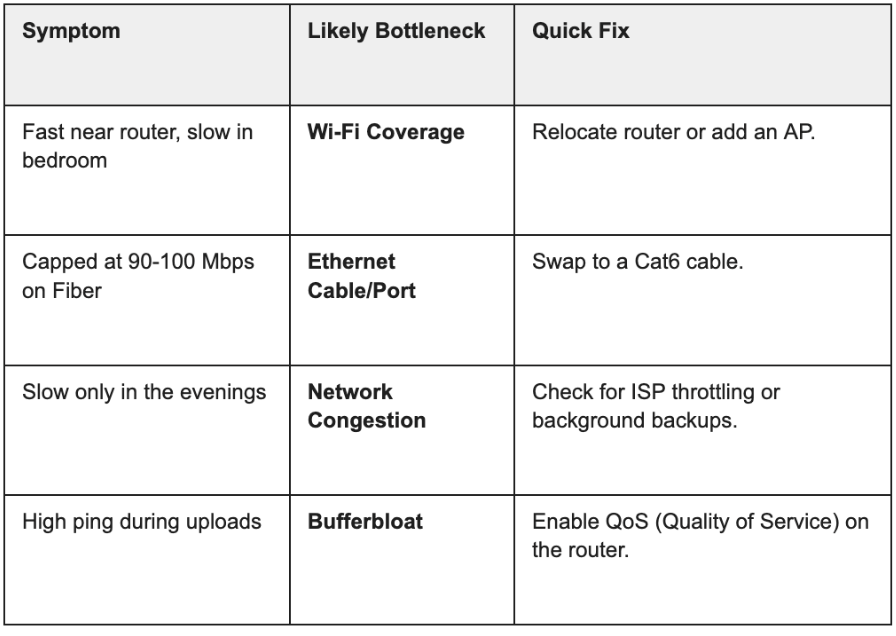
If your network is fast in one room and slow in another, the bottleneck is likely Wi-Fi coverage or interference.
If speed drops at certain times, like evenings, congestion may be the cause. If video calls freeze but browsing feels okay, the issue is often stability, not raw speed. If one laptop is slow but other devices are fine, the bottleneck may be that device. If the network improves after a router restart and then slows down again, the router may be overloaded.
The key is to look for what is consistent. Bottlenecks usually repeat in the same situations.
How to Find a Bottleneck in a Network: A Process of Elimination
A bottleneck can happen in different parts of your setup. To solve it properly, you need to know where it can occur, as each one can directly impact the end user experience. The most common bottleneck categories are your internet connection, your router or modem, Wi-Fi quality, Ethernet links, device performance, application performance, and congestion from too many users at once.
An internet connection bottleneck occurs when your ISP’s speed is insufficient or the provider is experiencing issues. A router or modem bottleneck occurs when the hardware is overloaded, outdated, or struggling with many devices.
A Wi-Fi bottleneck occurs when the signal is weak, blocked, or interfered with, or when the device is on the wrong Wi-Fi band. An Ethernet bottleneck happens due to a bad cable, a loose connector, or a slow port. A device bottleneck occurs when your laptop or phone is slow due to background tasks, low memory, or older hardware.
An application bottleneck occurs when one service is slow, even though the rest of the network is fine. A network congestion bottleneck occurs when too many devices compete for bandwidth simultaneously.
The good news is that you can test each one with a few simple steps.
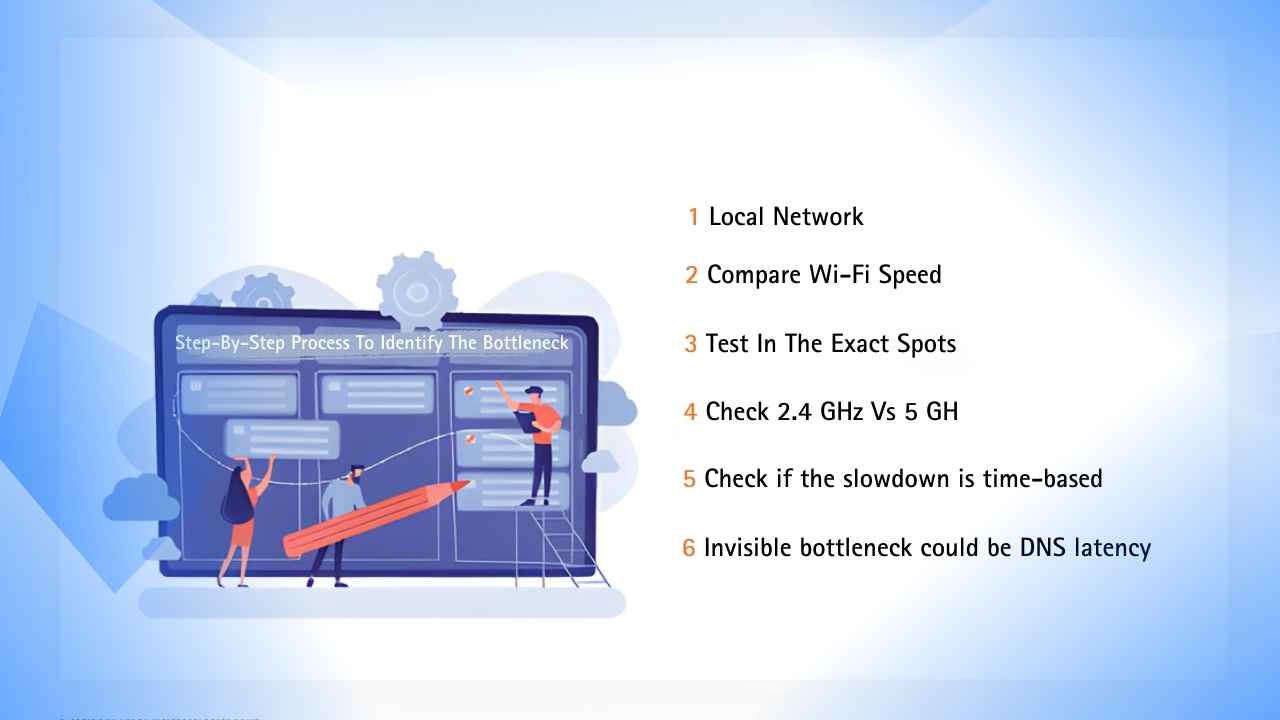
Step-By-Step Process To Identify The Bottleneck
A clean way to troubleshoot is to split the problem into two parts. First, find out whether the issue is with your internet connection or the local network in your home or office. This one step removes much of the guesswork.
Step 1: Check if the issue is with the Internet or the Local Network
Start with one question. Is the internet slow, or is it your local network?
The simplest test is a wired test. Connect a laptop or desktop to the router using an Ethernet cable. Run a speed test. Also, watch stability, not just the top speed.
If the wired speed is stable and high, your internet connection is likely fine. That usually means the bottleneck is Wi-Fi or the router handling wireless traffic.
If the wired speed is slow too, the bottleneck is likely one of these: an ISP line issue, a modem issue, or a router WAN limitation. The WAN limitation could be a MTU (Maximum Transmission Unit) mismatch or simply a CPU limitation on older routers trying to process high-speed fiber encryptions (PPPoE).
Step 2: Compare Wi-Fi Speed Near The Router
Now test the Wi-Fi near the router. This helps you avoid confusing distance issues with router issues.
Stand near the router and run a Wi-Fi speed test. Compare it with your wired result.
If Wi-Fi is much slower even near the router, the bottleneck is likely Wi-Fi performance or router limitations. If Wi-Fi is close to wired speed near the router but drops in other rooms, the bottleneck is expected coverage or interference.
Step 3: Test In The Exact Spots Where You Feel The Problem
Now test Wi-Fi where things feel slow. Try the next room, the farthest room, and any upper or lower floors.
If speed drops hard after one or two walls, your bottleneck is likely signal blockage, router placement, or interference. If speed stays decent but keeps “jumping,” the bottleneck may be stability, not raw speed.
Step 4: Check 2.4 GHz Vs 5 GHz
Wi-Fi bands matter more than most people realize. The 2.4 GHz band usually goes farther, but it is slower and more crowded. The 5 GHz band is faster, but it has a shorter range.
A device can connect to the wrong band, resulting in slow performance. If you are far from the router and connected to the 5 GHz band, your connection may be weak. If you are near the router but stuck on 2.4 GHz, the speed may be lower than expected.
If your router allows it, separating the band names can help you test and control this more easily.
Step 5: Check if the slowdown is time-based
If your network is slower only in the evening, that points to congestion. It could be people in your home streaming, or ISP congestion in your area, both of which directly affect overall network performance.
Run the same test at two or three different times in the day. Keep the device and location the same. If the pattern is consistent, the bottleneck is likely traffic load, not hardware failure.
Step 6: An invisible bottleneck could be DNS latency
If web pages take forever to start loading but are fast once they begin, the bottleneck is often a slow ISP DNS server rather than the bandwidth itself.
Simple Checks To Pinpoint The Exact Bottleneck
Once you have basic test results, these checks help you confirm the exact cause.
Router Or Modem Bottleneck Checks
A router can become a bottleneck when it is old or overloaded. This often shows up when many devices are connected.
Common signs include random dropouts, overheating, or performance that improves after a restart but then slows again. If the network feels suitable for a short time after rebooting, then slowly degrades, the router may be struggling under load.
Ethernet Bottleneck Checks
Ethernet is usually reliable, but a bad cable can quietly cap your speed. A slow port can do the same.
If the wired speed appears capped at 90–95 Mbps, the link may be negotiating at 100 Mbps instead of 1 Gbps. Cat5 cables cannot exceed 100 Mbps, swapping the cable to Cat6 and testing another router port is a quick way to confirm.
Device Bottleneck Checks
Sometimes only one device feels slow. That often means the network is fine and the device is the weak point.
Try the same test on another device in the exact location. If the second device is fine, the bottleneck is likely the original device, not the network.
Application Bottleneck Checks
If only one app is slow, the problem is probably not your network.
Test multiple things. Open a few websites. Try a video. Try a file download. If everything works except one service, you are likely seeing an app-side issue.
What Usually Causes Bottlenecks
Most bottlenecks come from a few repeat issues.
Poor router placement is a big one. Routers hidden in corners, behind TVs, or inside cabinets often create weak coverage. Interference is another big one. Neighboring Wi-Fi networks, Bluetooth devices, microwaves, and thick walls can reduce quality. Old routers can also struggle with modern speeds and many devices. Bufferbloat can cause problems, too. Cloud backups, security cameras, and large file uploads can eat up bandwidth and make calls lag.
What To Do After You Identify The Bottleneck
Fixing the problem becomes simpler once you know the cause.
If Wi-Fi coverage is the issue, moving the router to a central open area can help more than people expect. If interference is the issue, changing channels or using the right band can help. If the router is the issue, updating the firmware may help, but older routers may need to be replaced. If congestion is the issue, limiting heavy usage during peak hours or prioritizing work devices can help. If the ISP is the issue, you will need to share your wired speed results with them so they can troubleshoot the line.
The key is to avoid upgrading blindly. Test first, then fix.
Quick Reference Table
Conclusion: Maintaining a Bottleneck-Free Network
Network bottlenecks are common but not mysterious. Most slowdowns stem from a single weak point, not the entire network. Once you separate wired from Wi-Fi, test in a few key spots, and compare results across time and devices, the bottleneck usually becomes obvious.
If you work with networks often and want a more straightforward way to understand performance patterns, learning from platforms like Splitpoint Solution can help strengthen your overall troubleshooting approach.